Open topic with navigation
Idealpos Framework
Note!
The Idealpos v10 Build can be installed on an existing Idealpos v9 or Idealpos v8 installation with the existing Idealpos v8 Framework.
If performing a clean installation of Idealpos v10 on a new system, we recommended installing the latest Idealpos10-Framework, then install the required build of Idealpos v10.
If Ideal POS System 5.5 or Idealpos 6.0 build 132 or above (required before uninstallation) has been previously installed on the computer, make sure you have un-installed both IPS Framework and Ideal POS System 5.50 Build xx or Idealpos 6.0 from Add/Remove Programs.
Idealpos v10 Framework install, Selecting the SQL Server to install and Upgrade Processes for existing installs
When the Idealpos v7 Framework was installed, it installed SQL Server 2008 R2.
This behaviour has changed with the Idealpos v8/v10 Framework installation.
Depending on whether you are installing the Idealpos v10 Framework on a system that doesn't contain an existing v7/v7.1 installation (clean install) or installing the Framework on an existing v7/v7.1 system (upgrade), the behaviour will vary and is outlined in further detail as follows:
- Existing Idealpos v7.1/v8/v9 Installation - Running the v10 Framework installer on a terminal that contains an existing Idealpos v7/v7.1/v8/v9 installation will keep the existing SQL Server 2008 R2 in place and will not display a prompt asking the user which SQL Server version they want to install.
- New Framework Installation on a system that already has SQL Server installed - The v10 Framework will use the existing SQL Server installation and will not display a prompt asking the user which SQL Server version they want to install.
- New Framework Installation on a system that doesn't already have SQL Server or Idealpos v7/v7.1/v8/v9 installed - The v10 Framework installer will display a prompt asking the user which SQL Server version they want to install. The version that is selected will be downloaded and installed as part of the Framework installation. Note that SQL Server 2019/SQL Server 2025 are only supported on terminals running a 64-bit Operating System; refer to the minimum system requirements for each SQL Server version to determine if your system meets the requirements. When the Framework install is run on a 32-bit Operating System, the SQL Server 2019/SQL Server 2025 options will be greyed out. For further details regarding the SQL Server Version prompt, click here.
Warning!
Idealpos strongly recommends that you have the same SQL Server version installed on all terminals within your site.
By doing this, you will prevent any incompatibility between your terminals should you need to recover or restore a POS terminal using the Overwrite function.
The overwrite function will block a terminal running a newer version of SQL Server from sending an overwrite to a terminal running an older version of SQL Server.
To minimise any problems and to reduce the amount of time spent on upgrading to Idealpos v10, we recommend that you leave your existing Idealpos v7/v7.1 and SQL Server installations in place, then follow the recommended steps listed for each of the below scenarios.
If you would like to take the opportunity to upgrade your SQL Server version, you will need to uninstall Idealpos v7/v7.1 and SQL Server. You can then run the Idealpos v10 Framework which will perform a clean install, at which point you will be given the option to select your desired version of SQL Server to install.
Recommended upgrade process for sites already running Idealpos v7
- Do not uninstall Idealpos v7 or the Framework
- We recommend that you upgrade to the latest available build of Idealpos v7.1
- Install the new Idealpos v10 Framework, then install the Idealpos v10 build.
- The SQL Server will not be upgraded.
Recommended upgrade process for sites already running Idealpos v7.1
- Do not uninstall Idealpos or the Framework.
- Install the new Idealpos v10 Framework, then install the Idealpos v10 build.
- The SQL Server will not be upgraded.
Recommended upgrade process for sites already running Idealpos v8 or v9
- Do not uninstall Idealpos or the Framework.
- Install the Idealpos v10 build.
- The SQL Server will not be upgraded.
- Note - When upgrading to Idealpos v10 Build 1 or newer, .NET Framework 4.8 will be downloaded and installed.
- The .NET Framework 4.8 is only supported on the following versions of Windows (therefore, Idealpos v10 can only be installed on the below versions of Windows):
- Windows 8.1
- Windows 10 [Version 1607 or newer]
- Windows 11 (64bit only; not supported on ARM)
Recommended install process for new sites that are not running Idealpos
- Check the Windows version and Windows architecture (32-bit or 64-bit) of each POS terminal and Back Office system.
- If all systems are running a 64-bit version of Windows, you can select "Download SQL Server 2019 (64-bit only)" or "Download SQL Server 2025 (64-bit only)" during the Idealpos v10 Framework install, then run the Idealpos v10 build install.
- When deciding which version of SQL Server to install, ensure that you install the same version on all POS Terminals and Back Office systems (before installing, ensure that the selected version is supported on all POS Terminals/Back Offices).
- If there is a mix of systems running 32-bit and 64-bit versions of Windows, you will need to run the v10 Framework installer and select either "Download SQL Server 2014" or "Download SQL Server 2008 R2", ensuring that whichever version is selected is then consistently selected and installed on all terminals across your site. Once the Idealpos Framework install has been completed, run the Idealpos v10 build install.
Recommended install process for adding new terminals to an existing v10 installation
- When additional terminals are being added to an existing Idealpos v10 environment, they will also need to be running the same SQL Server version as your existing systems.
- You will need to determine which version of SQL Server is installed on the existing terminals before installing Idealpos onto your new terminals.
- There are a couple of different ways to determine which SQL Server version is currently running on a terminal.
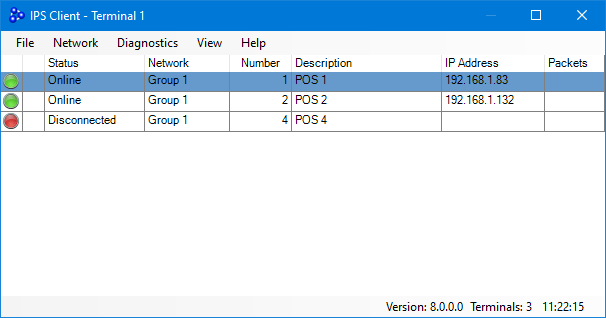
IPS Client Method - Open the IPS Client by clicking on the system tray icon.
If the icon doesn't appear in the system tray as shown in the below example, you may need to press the up arrow to display hidden icons.
If the IPS Client icon does not appear in the Windows System Tray, Idealpos might be closed. Start Idealpos which will also start IPS Client.
Click on any terminal shown in the list.
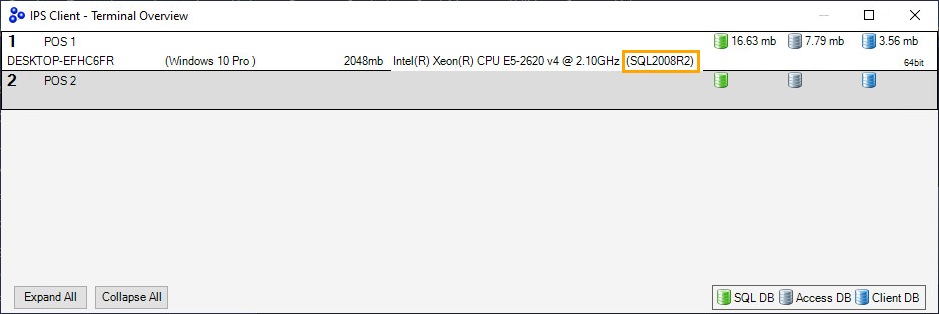
The IPS Client - Terminal Overview window will be displayed. The SQL version will appear in brackets next to the CPU name.
SQL Query Method - You can determine the SQL Server version by running an SQL Query (SELECT @@VERSION) via the SQLCMD tool.
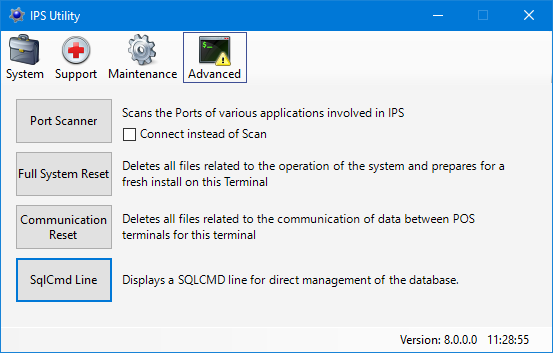
Go to: Start > Idealpos > IPSUtils.
Within the IPS Utility, go to: Advanced > SqlCmd Line.
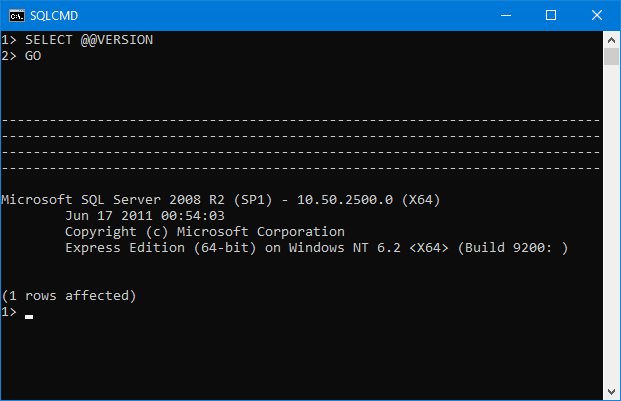
Within the SQLCMD window, enter the following commands, ensuring that you press ENTER after each line.
SELECT @@VERSION
GO
The SQL Server version will be displayed as shown in the example below:
Once you have determined the version of SQL Server, proceed as follows:
Run the Idealpos v10 Framework on your new terminals that don't already contain an installation of SQL Server or Idealpos.
When prompted, select the SQL Server version that matches your existing terminals.
The Idealpos v10 Framework installer will download and install the selected version of SQL Server as part of the Framework install.
Warning!
If SQL Server 2019 or higher was found on your existing terminals but the new terminal(s) are running a 32-bit version of Windows, you cannot proceed with the Framework installation on your new terminals.
This is because SQL Server 2019 or higher cannot be installed on a 32-bit Operating System.
Installing an older version of SQL Server onto the new terminals is also not an option because overwrites cannot be sent from a system or terminal running a newer version of SQL Server to a system or terminal running an older version of SQL Server.
In this particular scenario, you will be forced to organise terminal(s) with a 64-bit version of Windows.
Alternatively, you can install a 64-bit version of Windows onto the new terminals if they support it (e.g. new terminals contain 64-bit processors, POS terminal supports 64-bit version of Windows and 64-bit drivers for the POS terminal hardware can be sourced).
Installing Idealpos Framework
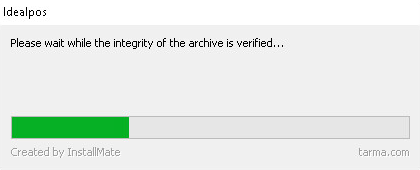
To Install the Idealpos Framework, copy the Idealpos-Framework.exe onto your local hard disk and run the file.
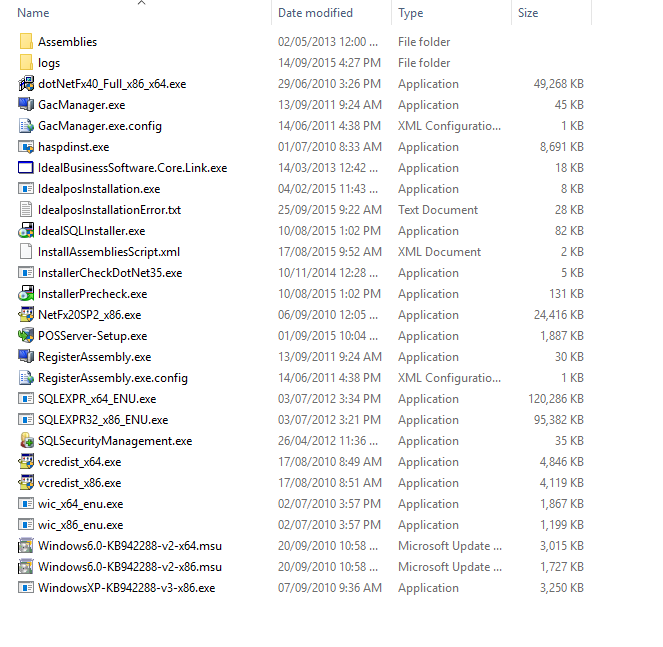
The Idealpos Framework will unpack the required files to the following locations, depending on your OS:
C:\Program Files\Common Files\Idealpos Solutions
C:\Program Files (x86)\Common Files\Idealpos Solutions
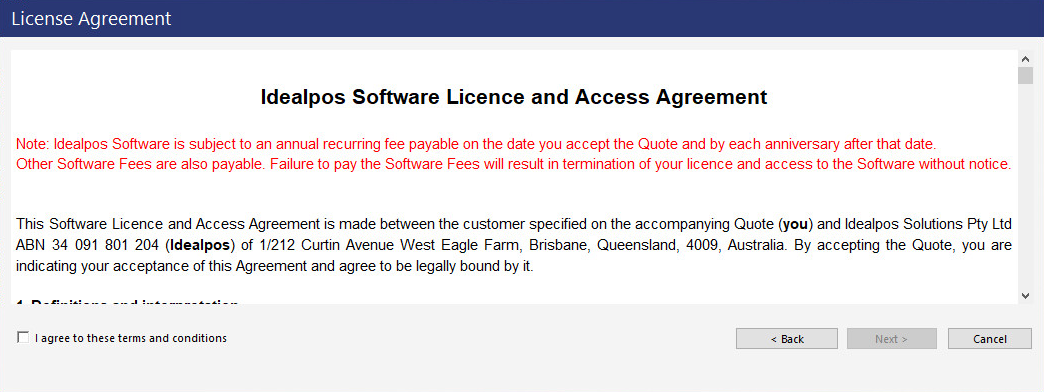
The License Agreement will appear.
Once you have read and agree to the license agreement, tick ‘I agree to these terms and conditions’ and then press next.
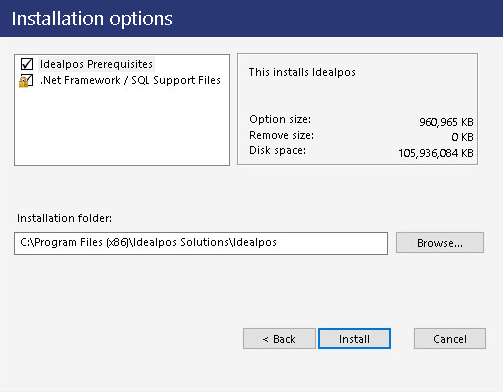
The Idealpos 10 Framework can be installed in two stages, the Idealpos Prerequisites and .NET Framework / SQL Support Files.
Tick both for a complete installation or un-tick Idealpos Prerequisites if you would like to install this at a later stage.
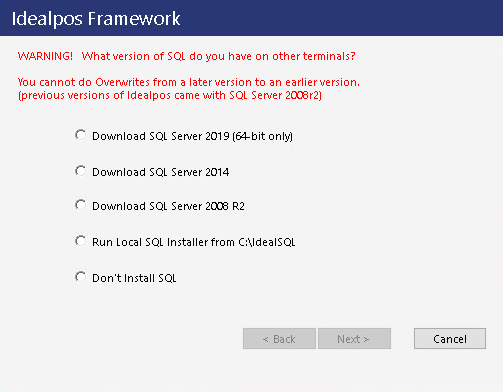
If you are performing a clean install of the v10 Framework onto a system which does not already have Idealpos or SQL Server installed, the Framework install will display a prompt for you to select the version of SQL Server to Download/Install:
- Download SQL Server 2019 (64-bit only) - This option is only available on 64-bit Operating Systems. This option is greyed out on 32-bit Operating Systems. Selecting this option will download SQL Server 2019 and install it as part of the Framework v8 install.
- Download SQL Server 2014 - This option is available on both 32-bit and 64-bit Operating Systems. It will download SQL Server 2014 and install it as part of the Framework v8 install.
- Download SQL Server 2008 R2 - This option is available on both 32-bit and 64-bit Operating Systems. It will download SQL Server 2008 R2 and install it as part of the Framework v8 install.
- Run Local SQL installer from C:\IdealSQL\ - This option is available on both 32-bit and 64-bit Operating Systems. Selecting this option will use a local copy of the SQL Server installation file instead of downloading it from the web.
This option will be useful for sites which have a slow internet connection or limited download quota.
You must manually source the SQL Server installation file for the required version of SQL Server and copy it into C:\IdealSQL\.
The filename of the SQL Server installation file must be either:
SQLEXPR_x64_ENU.exe (for installing on 64-bit Operating Systems) or
SQLEXP32_x86_ENU.exe (for installing on 32-bit Operating Systems).
It is only necessary to copy the SQL Server Express installation file that matches the Operating System architecture of the system that the Framework is being installed on.
You can also retrieve the SQL Server installation from a terminal or system which already has Idealpos installed.
The file can be sourced from C:\Program Files (x86\Common Files\Idealpos Solutions\ or C:\Program Files\Common Files\Idealpos Solutions\.
When using the Run Local Installer method, be aware that the version of the SQL Server is not contained in the filename of the installation EXE.
When sourcing the SQL Server installation EXE for this method, be sure to check the SQL Server version of the file and ensure that it is for the SQL Version you require.
This can be done by right-clicking on the SQL Installation EXE, then selecting Properties.
In the Properties window, click on the Details tab and the SQL Server version will be listed.
- Don't Install SQL - This option should only be selected if you are an advanced user and have a specific reason to skip the installation of SQL Server.
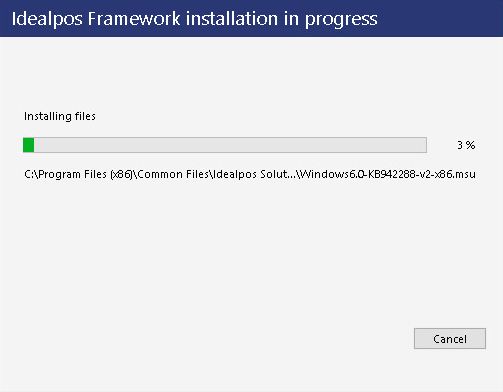
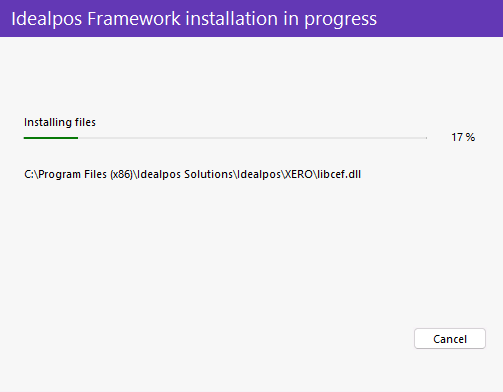
The first part of the installation process will perform the following:
- Download the selected SQL Server version
- Copy all the files required by Idealpos into the Installation Folder
- Unpack the Installer Files required for the installation of the system components
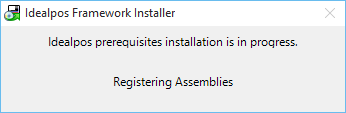
The Installer will then check to see which system components are installed and install the appropriate system components as necessary.
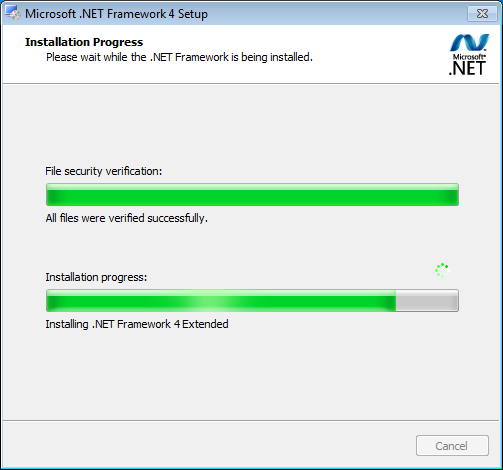
The Microsoft .NET 4.8 Framework installation will commence if not already installed.
It does not matter if you have a 32bit or 64bit machine, Idealpos includes both installers and will select the correct one for your system and extract the files to install.
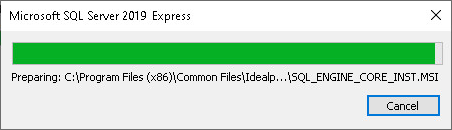
Note that the below example screenshot shows SQL Server 2025 Express which is only available on 64-bit Operating Systems.
If you are running a 32-bit Operating System and are performing a clean installation on a system that doesn't already have Idealpos installed, SQL Server 2014 Express will be installed.
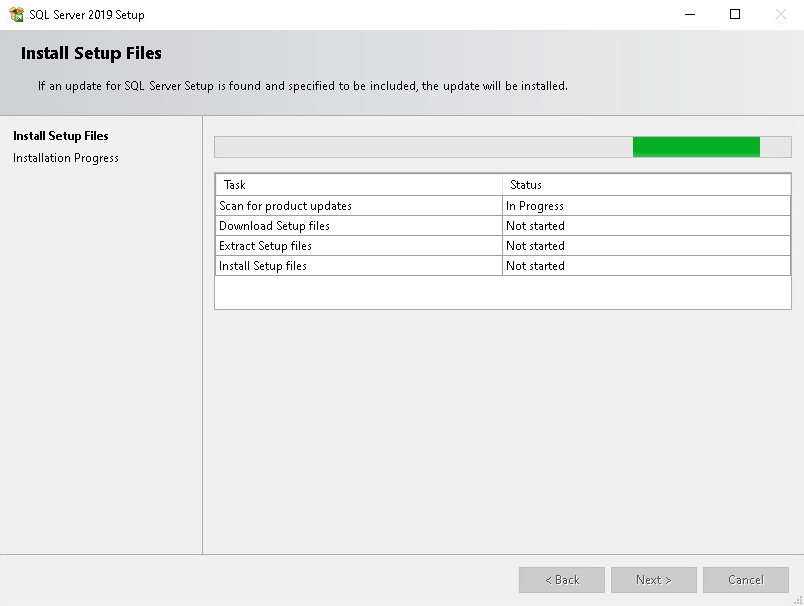
The SQL installation will begin.
The SQL installation begins to copy files and install the software.
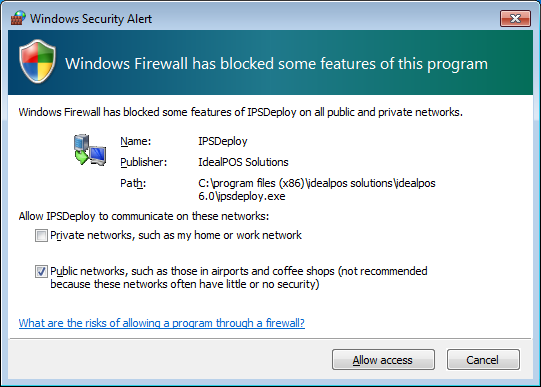
If Windows Firewall is enabled, click ‘Unblock’ or ‘Allow Access’ when prompted.
This message will only appear the first time the software is started.
Open topic with navigation